

Downloading an Android game file does not always mean the installation will work immediately. Sometimes the file downloads correctly but refuses to install, while in other cases Android displays messages such as “App not installed,” “There was a problem parsing the package,” or simply stops the installation without giving a clear reason. Understanding the cause can save time and prevent unnecessary changes to your phone.
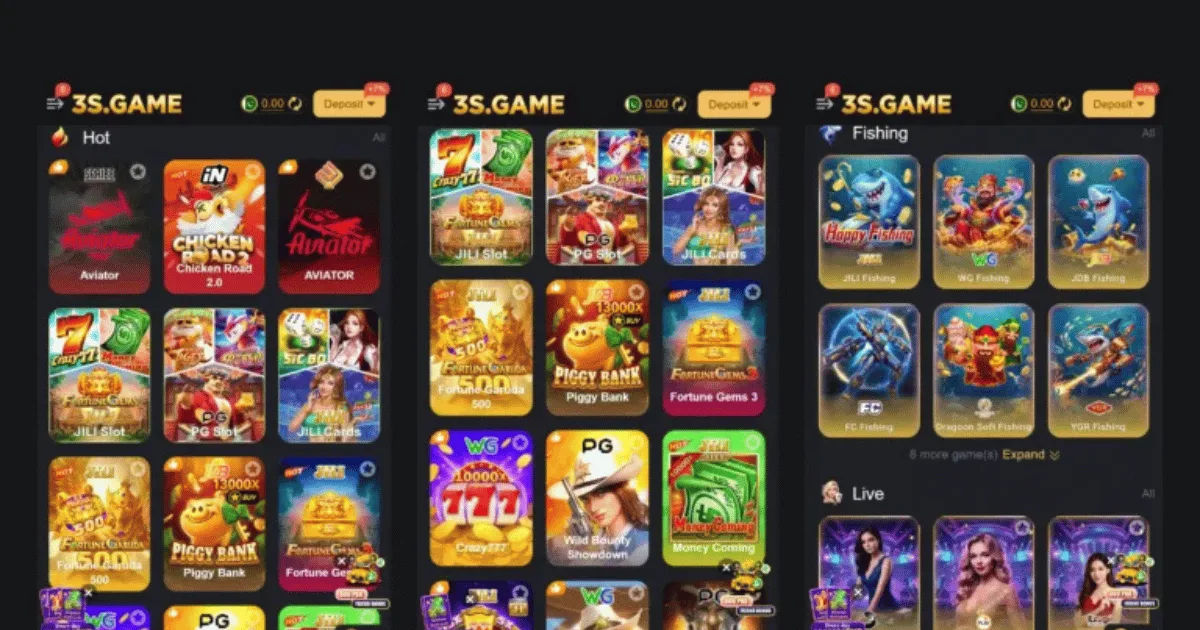
If you are trying to install a 3s game download apk, several factors can be responsible. The problem may come from Android security settings, insufficient storage, an incompatible Android version, a damaged APK file, an existing version of the game, or an APK that was not designed for your device.
This guide explains the most common causes and practical ways to troubleshoot them. The goal is not simply to get the game installed, but to understand why installation failed and how to avoid the same problem later.
What Does “APK Not Installed” Actually Mean?
APK stands for Android Package Kit. It is the file format Android uses to install applications outside the Google Play Store.
When you tap an APK, Android checks several things before allowing the installation. It examines the package structure, application permissions, compatibility, signing information, available storage, and other system requirements.
If one of these checks fails, installation can stop.
The confusing part is that two completely different problems can produce the same basic message: “App not installed.” That is why randomly trying different solutions is often ineffective.
The better approach is to identify the likely cause first.
Common Reasons a 3s Game Download APK Will Not Install
There is no single reason behind every failed APK installation. Different phones and Android versions can behave differently.
The APK File Is Corrupted
One of the simplest explanations is a damaged download.
An APK may appear to have downloaded successfully while some data inside the file is incomplete or corrupted. This can happen because of an unstable internet connection, an interrupted download, insufficient storage during downloading, or a problem with the source hosting the file.
A corrupted APK usually cannot be repaired by changing phone settings.
The practical solution is to delete the damaged file and obtain a fresh copy from a trustworthy source. Avoid repeatedly attempting to install the same broken file.
Your Phone Does Not Have Enough Storage
Android needs more storage than the apparent size of the APK.
For example, a 3s game download apk may occupy a relatively small amount of space, but installation can require additional temporary storage. The game may also need considerably more space after installation because it creates folders, extracts resources, downloads additional data, and stores updates.
If your phone is almost full, installation can fail unexpectedly.
Check your available internal storage before trying again. Removing unused applications, large videos, old downloads, or unnecessary cached files may provide enough room.
Installation From Unknown Sources Is Blocked
Android normally protects users from installing applications downloaded from outside official app stores.
Depending on your Android version and device manufacturer, you may need to allow the particular application you are using to install unknown applications.
For example, if you downloaded the APK through a browser, Android may ask you to allow that browser to install apps.
This permission is usually separate from ordinary application permissions.
If the installation is blocked immediately after opening the file, check your Android security settings and see whether the source application has permission to install unknown apps.
Only enable this permission when you understand where the APK came from. Installing files from unreliable websites can expose your device to unwanted or malicious software.
The APK May Be Incompatible With Your Android Version
Android applications are built to work with particular versions and configurations of the operating system.
A game package that worked on an older phone may not install on a newer Android release. The opposite can also happen when an application requires a newer Android version than the phone provides.
Look at your device's Android version under the phone's system information.
Then compare it with the requirements of the game.
If the package requires a newer Android version, changing a random security setting will not solve the problem. You may need a compatible release of the application instead.
The APK Architecture May Not Match Your Device
Another technical issue involves CPU architecture.
Android devices can use different architectures, including ARM-based configurations and other variants. Some applications provide separate packages for different architectures, while others use a universal package.
If the APK was built for an architecture your phone does not support, Android may refuse the installation.
This issue is particularly relevant when downloading modified, older, or manually distributed APK packages.
A package designed specifically for one architecture should not automatically be assumed to work on every Android device.
An Older Version of the Game Is Already Installed
Sometimes the problem is not the new APK itself.
You may already have another version of the game installed on your phone. Android uses application signatures and package information to determine whether a new package can replace an existing installation.
If the existing application was installed from a different source or signed differently, Android may prevent the new package from replacing it.
This commonly happens when someone tries to install an unofficial version over an official version.
Check for an Existing Installation
Open your phone's application settings and look for the game.
If an older version exists, determine whether you actually need to keep it.
Before uninstalling anything, remember that deleting an application can also affect locally stored game data. If your progress is important, check whether the game synchronizes data with an account or provides another backup method.
Once you understand the consequences, removing the incompatible older version may allow the new package to install.
The APK Might Not Be a Standard APK
Not every Android application download is a single standalone APK.
Some applications are distributed using multiple package components. You may encounter formats or packages that require additional installation methods.
For example, a download might contain several APK files intended for different device configurations.
If you open only one component instead of installing the complete package, Android may reject it.
This is one reason it is important to understand exactly what file you downloaded rather than assuming every Android game download works by tapping one APK file.
Android Security May Be Blocking the Installation
Modern Android versions include stronger security protections than older versions.
Your phone may warn you about an application that comes from outside an official store. Some devices may prevent certain installations altogether if they detect suspicious behavior or security risks.
This is not necessarily an indication that the file is definitely malicious. It means Android cannot treat the file as trusted in the same way as an application obtained through an official distribution channel.
Do not disable important security protections simply to force an installation.
If Android gives a specific warning, read it carefully before proceeding.
The Downloaded File May Not Really Be an APK
File extensions can sometimes be misleading.
A file may be renamed with an APK-looking extension even though it is incomplete, packaged incorrectly, or not intended to be installed directly.
Check the file name and size.
If the download page provided instructions indicating that additional files are required, follow the legitimate installation instructions rather than renaming files randomly.
Renaming a file does not convert it into a valid Android package.
Your Phone May Have a Software-Specific Restriction
Different manufacturers add their own security and software-management features to Android.
Samsung, Xiaomi, Oppo, Vivo, OnePlus, Google Pixel, and other devices can have slightly different menus and security controls.
This means instructions written for one phone may not exactly match another.
If you cannot find an “Install unknown apps” option in the location described by a guide, use your phone's settings search function. Search for terms such as “unknown apps,” “install unknown applications,” or “special app access.”
The exact wording can vary.
How to Troubleshoot the Installation Step by Step
Instead of changing many settings at once, work through the problem systematically.
Step 1: Check the File
Confirm that the download completed properly.
If the file appears unusually small compared with the expected download size, or the download was interrupted, obtain a fresh copy.
Do not keep testing a potentially damaged file.
Step 2: Check Available Storage
Open your storage settings and make sure you have enough free internal space.
Leave additional room beyond the APK's listed size. Games frequently require extra space during installation and after their first launch.
Step 3: Check Android Compatibility
Find your Android version and compare it with the application's stated requirements.
If the requirements do not match, look for a legitimate compatible version rather than forcing installation.
Step 4: Look for an Existing Version
Check whether the game is already installed.
If another version exists, determine whether it conflicts with the package you are trying to install.
Back up important game data before removing anything.
Step 5: Review Installation Permissions
If the APK comes from a browser or file manager, check whether that particular application is allowed to install unknown applications.
Granting the permission does not guarantee that the APK will install. It simply allows Android to proceed to the next security checks.
Step 6: Restart the Phone
A restart sounds basic, but it can clear temporary system problems.
If an installation attempt became stuck or Android's package installer experienced a temporary error, restarting the device can sometimes resolve it.
Step 7: Try a Fresh, Trusted Package
If the previous file still fails, the problem may be with that specific package.
Do not download dozens of random copies from unknown websites. A safer approach is to locate a legitimate distribution source and verify that the package is intended for your Android version and device.
What If the APK Still Does Not Install?
If you have checked storage, compatibility, permissions, and the existing application, there may be a deeper compatibility problem.
The package could have an incompatible architecture, conflicting signature, missing components, or requirements that your device cannot satisfy.
At that point, repeatedly attempting the installation is unlikely to help.
Look at the exact error message Android displays. A message such as “parsing error” points toward a package or compatibility problem, while an installation conflict can indicate an existing application or signing issue.
The more specific the error, the easier it becomes to identify the correct solution.
Should You Clear the Package Installer Cache?
On some Android devices, temporary data associated with system components can occasionally cause installation problems.
However, clearing system-related data should not be the first thing you do.
Start with the simple checks: storage, file integrity, compatibility, permissions, and existing versions.
If those do not solve the problem, device-specific troubleshooting may be appropriate. The exact steps depend on your Android version and manufacturer.
Avoid deleting unfamiliar system data simply because an online guide recommends it.
How to Avoid APK Installation Problems in the Future
Prevention is usually easier than troubleshooting.
Download applications from reputable and legitimate sources whenever possible. Check the Android requirements before downloading large files. Keep enough free storage available and maintain your phone's software updates.
It is also useful to keep track of where an application came from.
If you have an official version installed, replacing it with an independently distributed package can create signing conflicts. Understanding this before installation can prevent unnecessary uninstallations and possible data loss.
Most importantly, do not treat every “APK not installed” problem as a security setting issue.
Sometimes the package is simply incompatible.
Is It Safe to Install a 3s Game Download APK?
Safety deserves attention whenever an application is installed outside an official app store.
An APK can contain legitimate application code, but a file from an unknown source can also be modified. A download page alone does not prove that a file is safe.
Before installing an unfamiliar package, consider its source and whether the publisher is identifiable and trustworthy.
Keep Android's security features enabled whenever possible. If your device displays a serious security warning, do not ignore it merely because the installation is inconvenient.
It is better to spend a few minutes verifying a file than to risk exposing personal information or other applications on the phone.
When You Should Stop Trying to Install It
There are situations where the sensible solution is simply not to install the package.
If the source looks suspicious, the file repeatedly fails verification, the application requests unusual permissions, or Android strongly warns against installation, forcing the process is not worth the risk.
Likewise, if the package is clearly incompatible with your device, searching for a compatible legitimate version is better than using questionable workarounds.
A successful installation is not automatically a safe installation.
Conclusion
When a 3s game download apk is not installed, the problem can have several causes. A corrupted download, insufficient storage, blocked installation permissions, Android incompatibility, CPU architecture differences, an existing application, conflicting signatures, or an incomplete package can all produce installation failures.
The best troubleshooting method is to work from the simplest possibilities toward the more technical ones.
Start by checking the downloaded file and available storage. Then confirm your Android version, check whether another version of the game is already installed, and review the permission that allows your browser or file manager to install applications from outside official stores.
If the problem continues, pay attention to the exact error message. It can provide an important clue about whether the issue involves compatibility, package integrity, or an installation conflict.
Most importantly, do not disable security protections or install suspicious files simply to make an APK work. A game is not worth compromising the security of your device.
With a reliable source, a compatible package, enough storage, and the correct installation permissions, many ordinary APK installation problems can be resolved without complicated steps.

Leave a Reply